bromigOS
The full desktop. Try it live from the stick, then install it when you’re ready.
Download · 5.3 GB Bromigos™
Download bromigOS // 0.1.3 · stable
One file holds the whole desktop. Put it on a USB stick, start your PC from it, and try bromigOS without changing anything. No Linux know-how needed: this page walks you through it, from Windows, a Mac or Linux.

Step 01
There are two downloads. Almost everyone wants the first.
The full desktop. Try it live from the stick, then install it when you’re ready.
Download · 5.3 GBField Kit, small text-mode tools for repair, the lab and servers: coming soon.
| Where | What |
|---|---|
https://pkgs.bromigos.org/iso/latest.json | The newest stable ISOs: each one's edition, file, version, size, sha256, url, sha256_url, sig_url, secure_boot |
https://pkgs.bromigos.org/iso/0.1.3/bromigos-0.1.3-x86_64.iso | A release's ISO, with .sha256, .sig and .json beside it, and the folder's index.json |
https://pkgs.bromigos.org/iso/edge/latest.json | The edge build: from main, every week, newest only |
The newest stable ISO’s URL, in one line:
Step 02
For the curious. A checksum is a fingerprint of the file: if yours matches ours, the download arrived whole and is the one we published.
Signed with the bromigOS key 393E 7D54 F7DE 58FE 75B9 7214 947C 9D61 93D3 DD8B
Open a terminal in the folder with the ISO (usually Downloads) and run the line for your system.
On Linux, download the .sha256 file into the same folder first; it prints OK when they match.
393E 7D54 F7DE 58FE 75B9 7214 947C 9D61 93D3 DD8B: the same key signs the package repository..sig is a detached signature over the ISO; the .sha256 is in sha256sum's own format, so -c reads it directly.Step 03
Use the computer you have now; it doesn’t have to be the PC you’ll run bromigOS on. You need a USB stick of 8 GB or more, and everything on it is erased, so copy off anything you want to keep.
Or use balenaEtcher: Flash from file, Select target (your stick), Flash.
The easy way: balenaEtcher (Flash from file, Select target, Flash), or GNOME Disks: pick the stick, then the ⋯ menu › Restore Disk Image, and choose the ISO.
/dev/sdX) by its size:/dev/sdX:Check the name twice: dd erases whatever disk you give it, without asking.
Already have a Ventoy stick? Copy the .iso onto it like any file; that works too.
.iso onto the Ventoy stick.Step 04
Your PC normally starts Windows. To start from the stick, you pick it in the PC’s boot menu.
UEFI:followed by the stick’s name.

| Brand | Boot menu | Setup |
|---|---|---|
| Dell | F12 | F2 |
| HP | Esc, then F9 | F10 |
| Lenovo | F12 (some IdeaPads: the small Novo button, or Fn+F12) | F1 or F2 (ThinkPads: Enter, then F1) |
| ASUS | F8 (desktops) or Esc (laptops) | Del or F2 |
| Acer | F12 (if nothing happens, turn on F12 Boot Menuin setup with F2) | F2 |
| MSI | F11 | Del |
| Gigabyte | F12 | Del |
| ASRock | F11 | F2 or Del |
| Samsung | Esc or F2 | F2 |
| Toshiba / Dynabook | F12 | F2 |
| Intel NUC | F10 | F2 |
| Microsoft Surface | Hold Volume Down, press and release Power, and keep holding Volume Down until the logo shows | Hold Volume Up while you press Power |
In Windows, open Settings › System › Recovery › Advanced startup › Restart now. When the blue menu appears, choose Use a device, then your USB stick. (Or Troubleshoot › Advanced options › UEFI Firmware Settings to open the PC’s setup.)
Secure Boot is a PC setting that only starts software signed by keys the PC trusts. Most Windows PCs have it on.
The stick starts with Secure Boot on. The first time, the PC shows a blue screen (MokManager) asking you to trust bromigOS’s key. You do this once per PC:
Use the arrow keys and Enter on these screens; the mouse doesn’t work there.
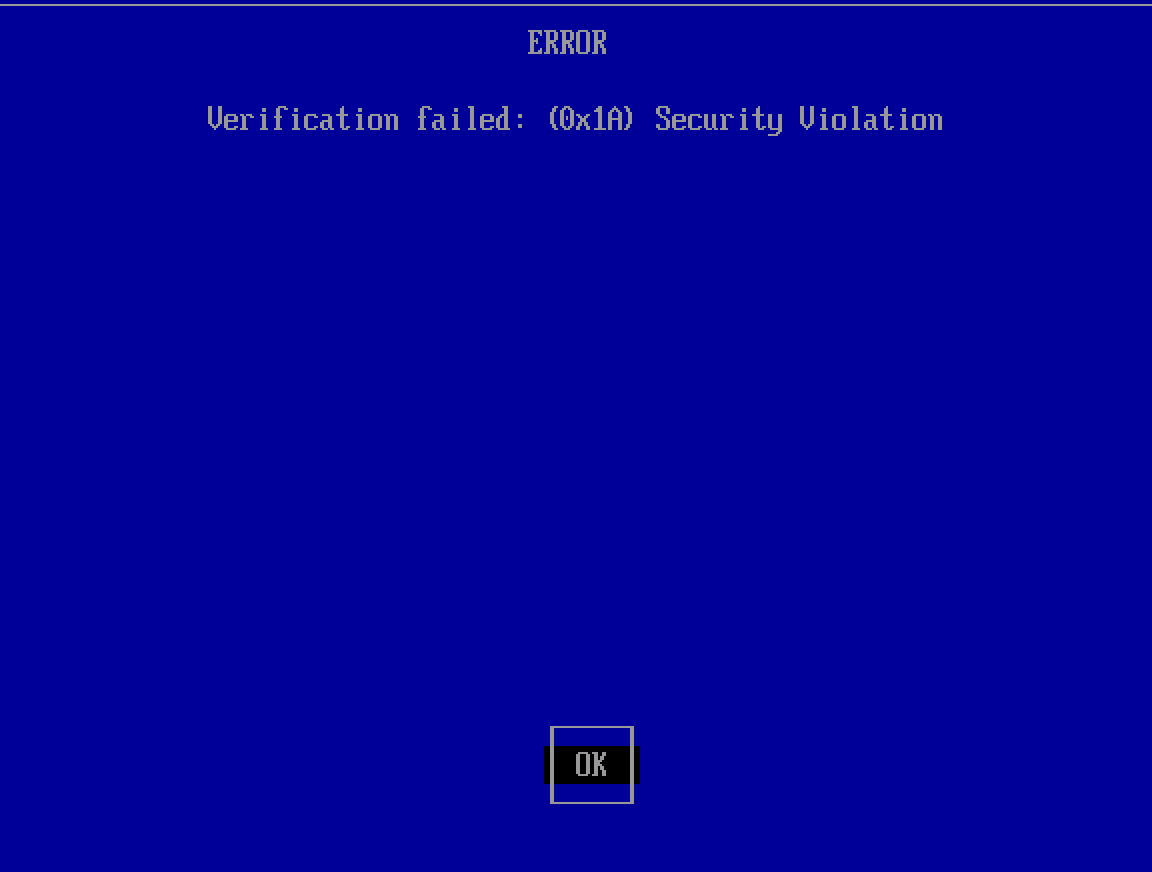
A blue screen titled ERROR says Verification failed: (0x1A) Security Violation. Press Enter (OK).
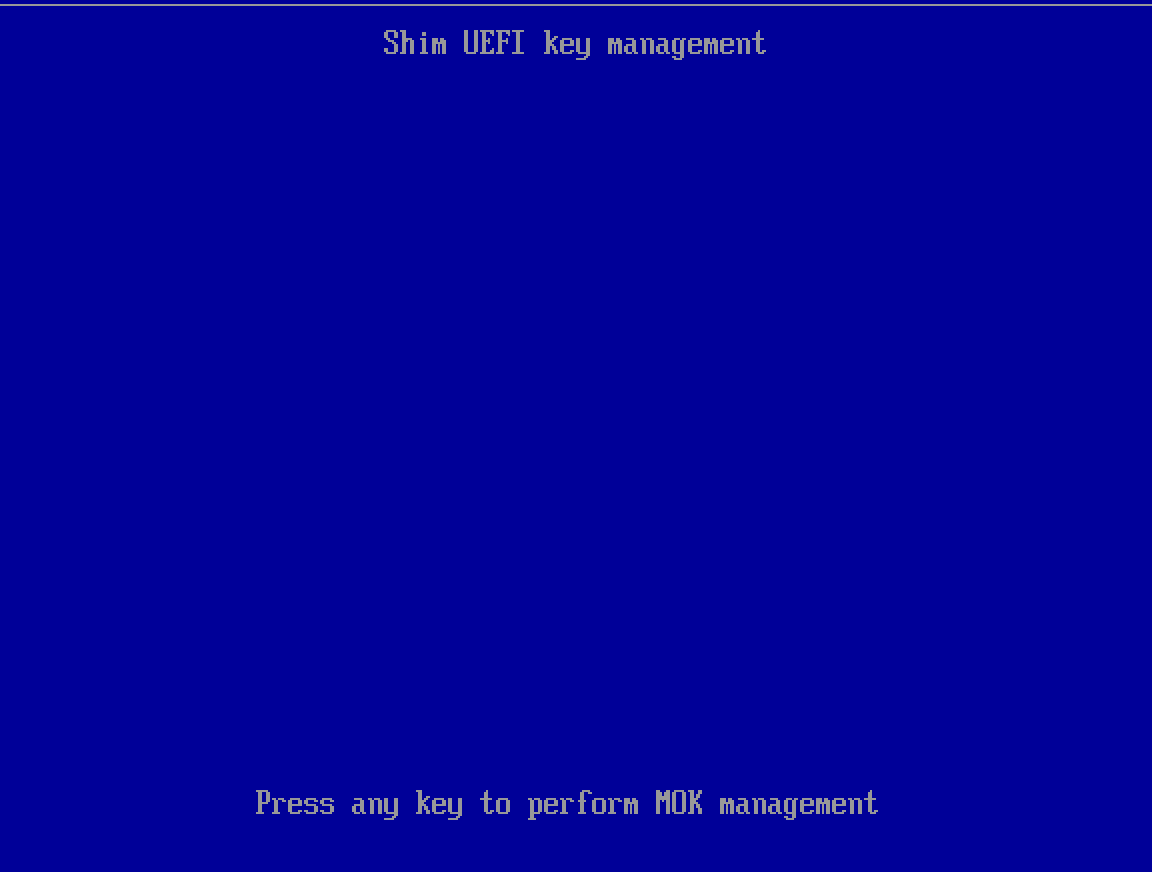
Shim UEFI key management says Press any key to perform MOK management, with a 10-second countdown. Press any key.
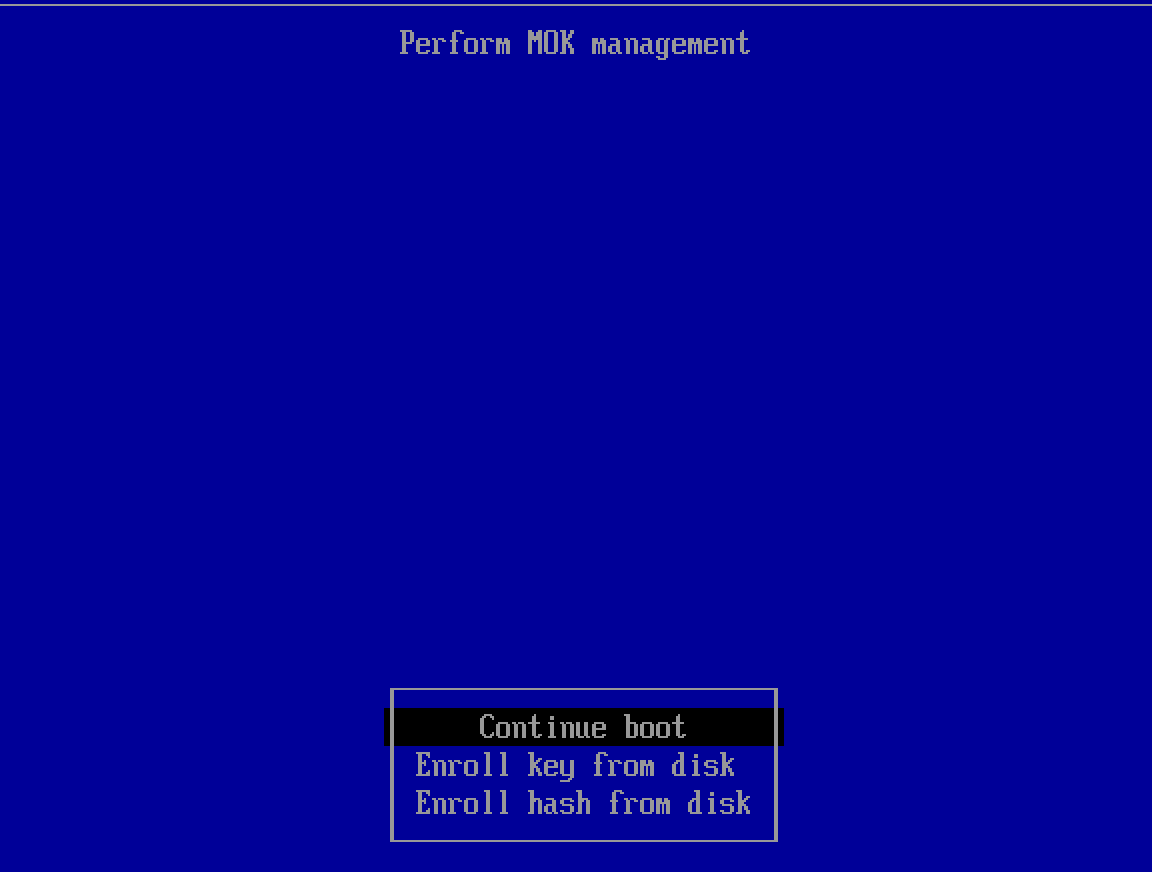
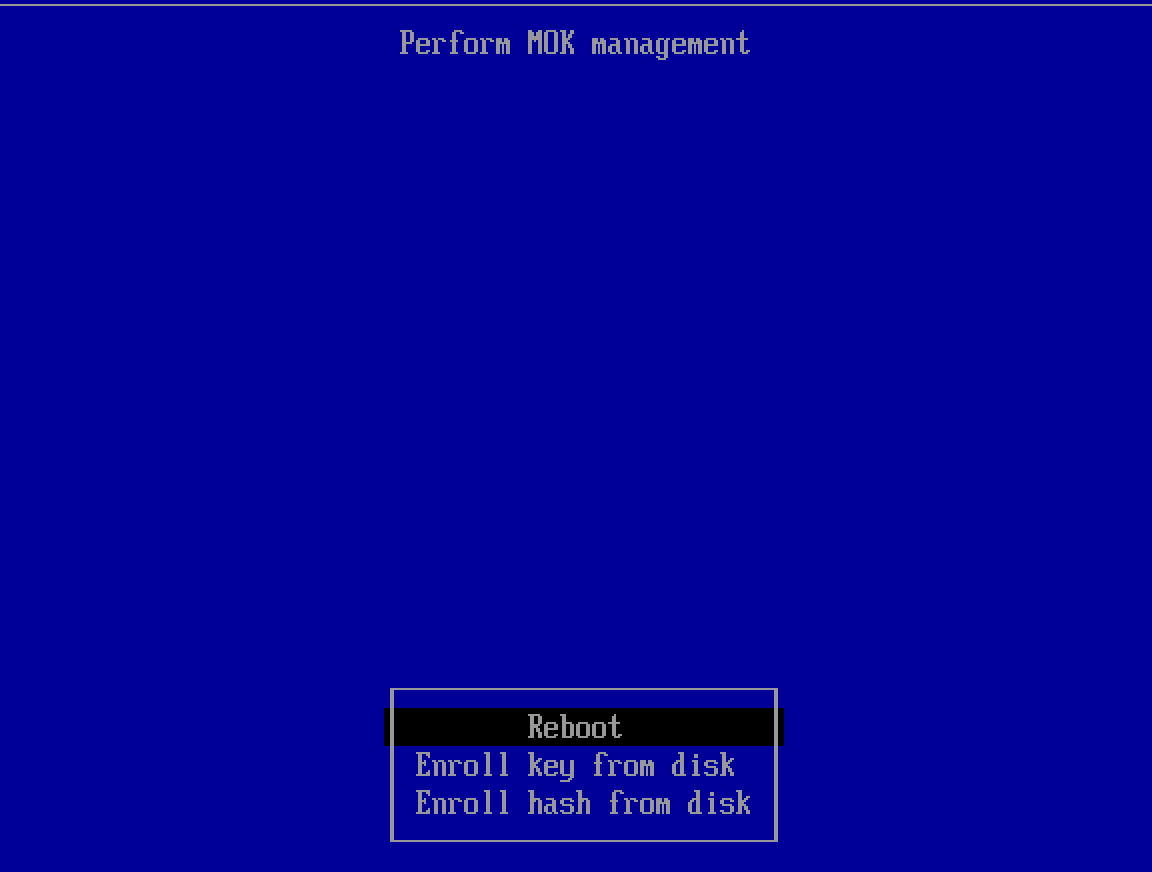
On Perform MOK management, choose Enroll key from disk.
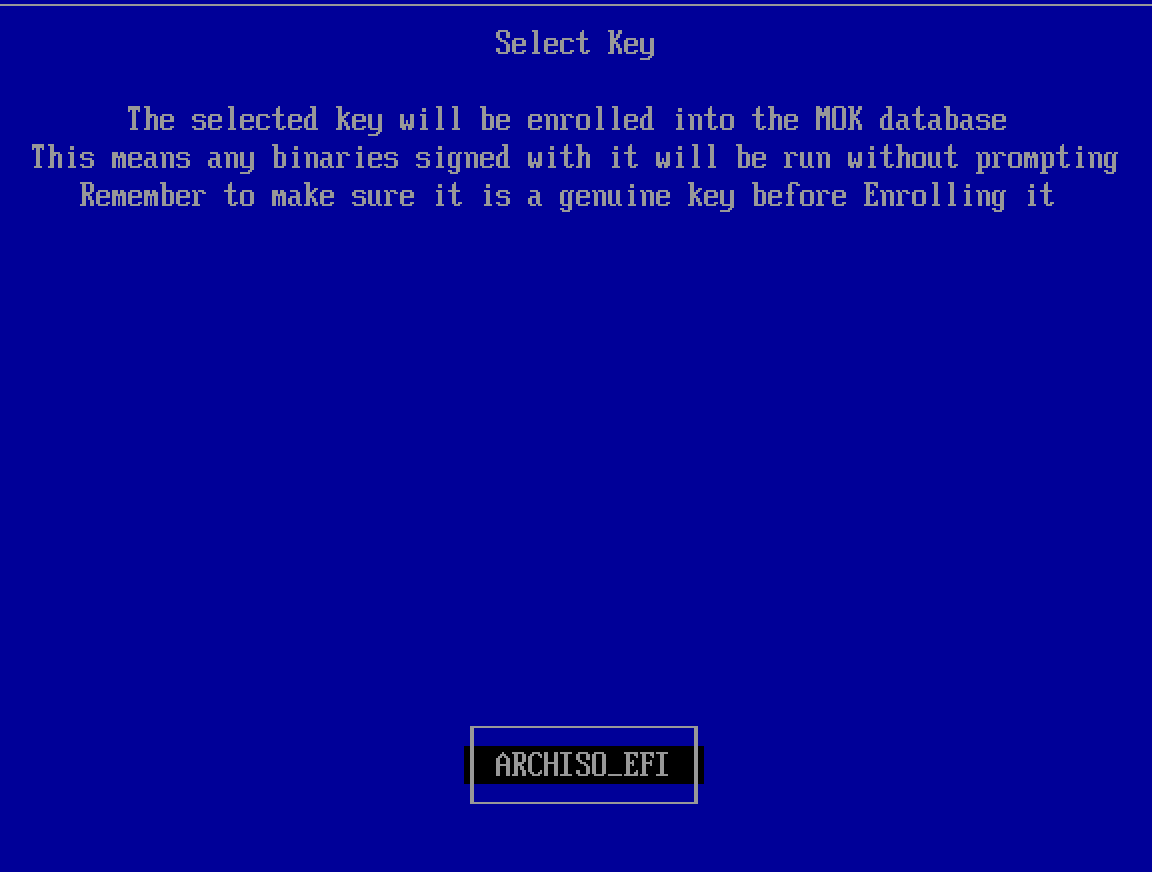
On Select Key, choose the USB stick: ARCHISO_EFI.
Choose ENROLL_THIS_KEY_IN_MOKMANAGER.cer.
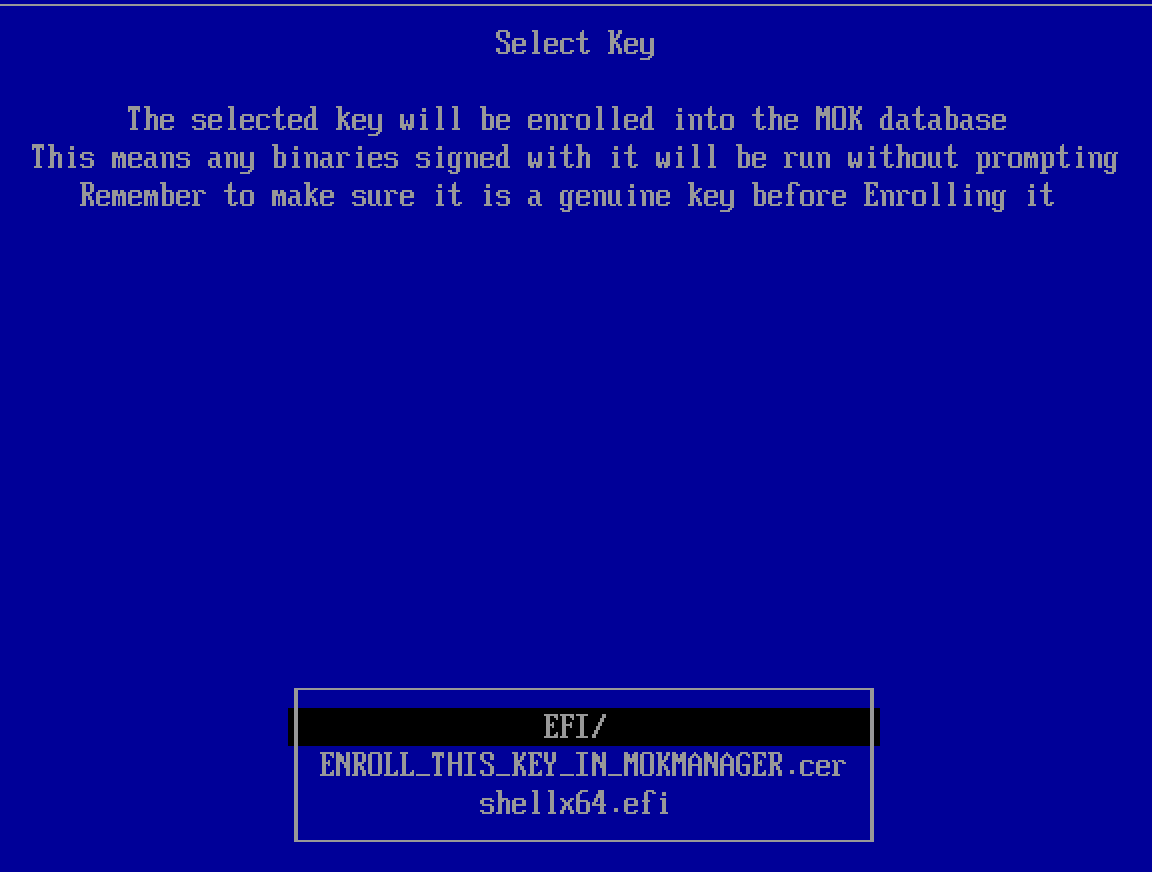
On [Enroll MOK], choose Continue. (View key 0 shows the certificate first.)
![[Enroll MOK]: View key 0 and Continue](/download/mok-6-1152.webp)
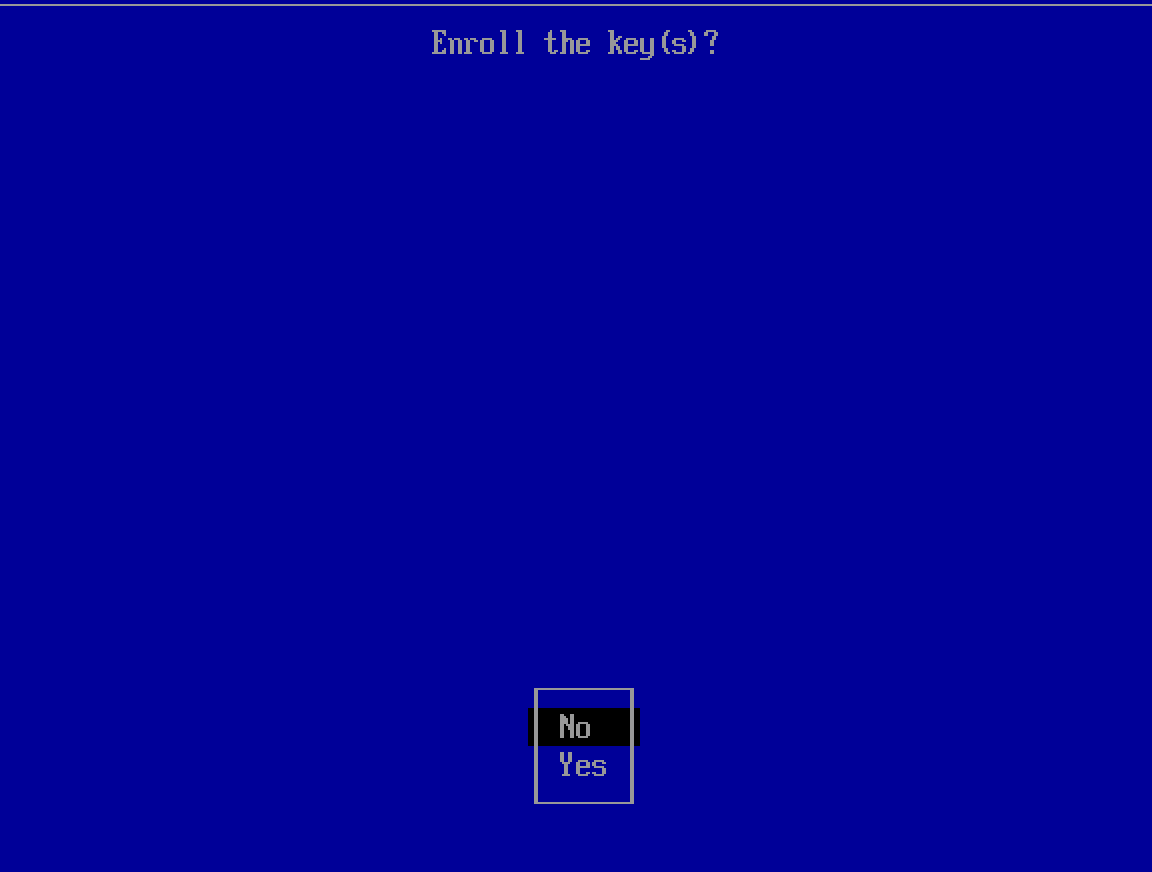
On Enroll the key(s)?, choose Yes.
Back on Perform MOK management, choose Reboot. The PC starts the stick again (if Windows starts instead, pick the stick in the boot menu again), and the bromigOS menu appears.
With Secure Boot on, the bromigOS boot menu is plain text instead of the themed one; the entries are the same.
The key’s SHA-1 fingerprint, as View key 0 shows it: 5F:EC:1D:6C:E1:8B:6B:D3:B9:6E:ED:E9:87:AE:B4:E9:EE:62:49:86. How it works
Installed bromigOS: for now, turn Secure Boot off before you start the installed system. Its own Secure Boot support isn’t done yet.
Some PCs only let you change it after you set a supervisor password in setup. On ASUS, set OS Type
to Other OS
. You can turn Secure Boot back on later for Windows.
BitLocker: if Windows uses BitLocker or device encryption, turning Secure Boot off or on can make Windows ask for its BitLocker recovery key at the next start. Get the key first, at aka.ms/myrecoverykey.
| Boot menu entry | Kernel parameters |
|---|---|
| Start bromigOS | archiso's line: archisobasedir=arch archisosearchuuid=… splash quiet |
| Install bromigOS | adds bromigos.install: the live session opens the installer at login |
| Start with safe graphics | adds nomodeset |
| Start with the screen reader | adds accessibility=on: speech from the start |
e on an entry in GRUB (UEFI), or Tab in the BIOS menu, and add copytoram to run from RAM and free the stick, or cow_spacesize=4G for more room for changes in the live session.ENROLL_THIS_KEY_IN_MOKMANAGER.cer) and in the repository (iso/secureboot/bromigos-secureboot.crt). SHA-256 9D:18:1B:07:00:B6:F8:74:94:01:6A:B7:3B:49:E4:A0:96:C7:7D:75:3E:A5:71:D7:75:DB:3E:1B:54:6E:E9:D5; SHA-1 5F:EC:1D:6C:E1:8B:6B:D3:B9:6E:ED:E9:87:AE:B4:E9:EE:62:49:86.Step 05
On the bromigOS boot menu, pick what you want with the arrow keys and Enter.
The whole desktop, running from the stick. Look around: nothing on your PC changes.
Opens the installer. It asks which disk to use, explains each choice, and asks before it erases anything. Back up your files before you install.

Step 06
Choose Install bromigOS in the boot menu, or press Install bromigOS on the live desktop’s welcome card. The installer fills the screen and asks one thing at a time. You can go back and change anything until you press Install.
Back up your files first. Installing alongside Windows keeps them, but a copy elsewhere is always worth having.

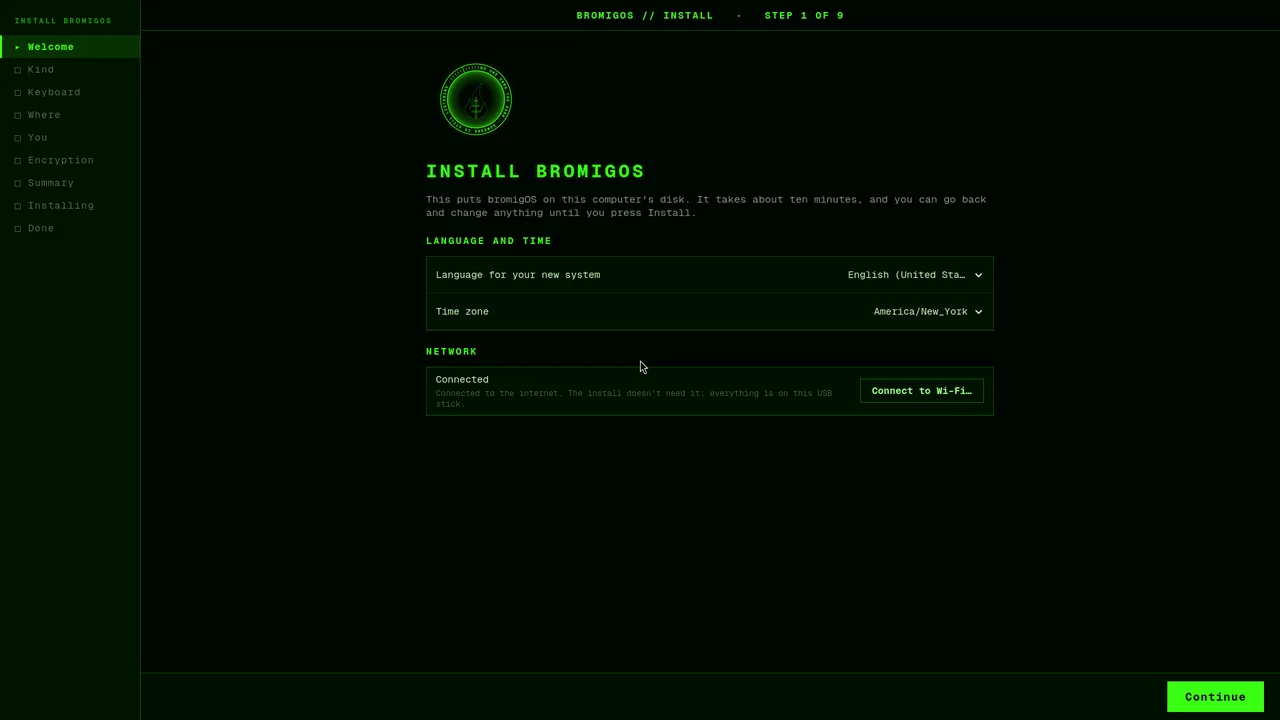
Welcome. Choose the language and time zone. You don’t need the internet: everything is on the stick.
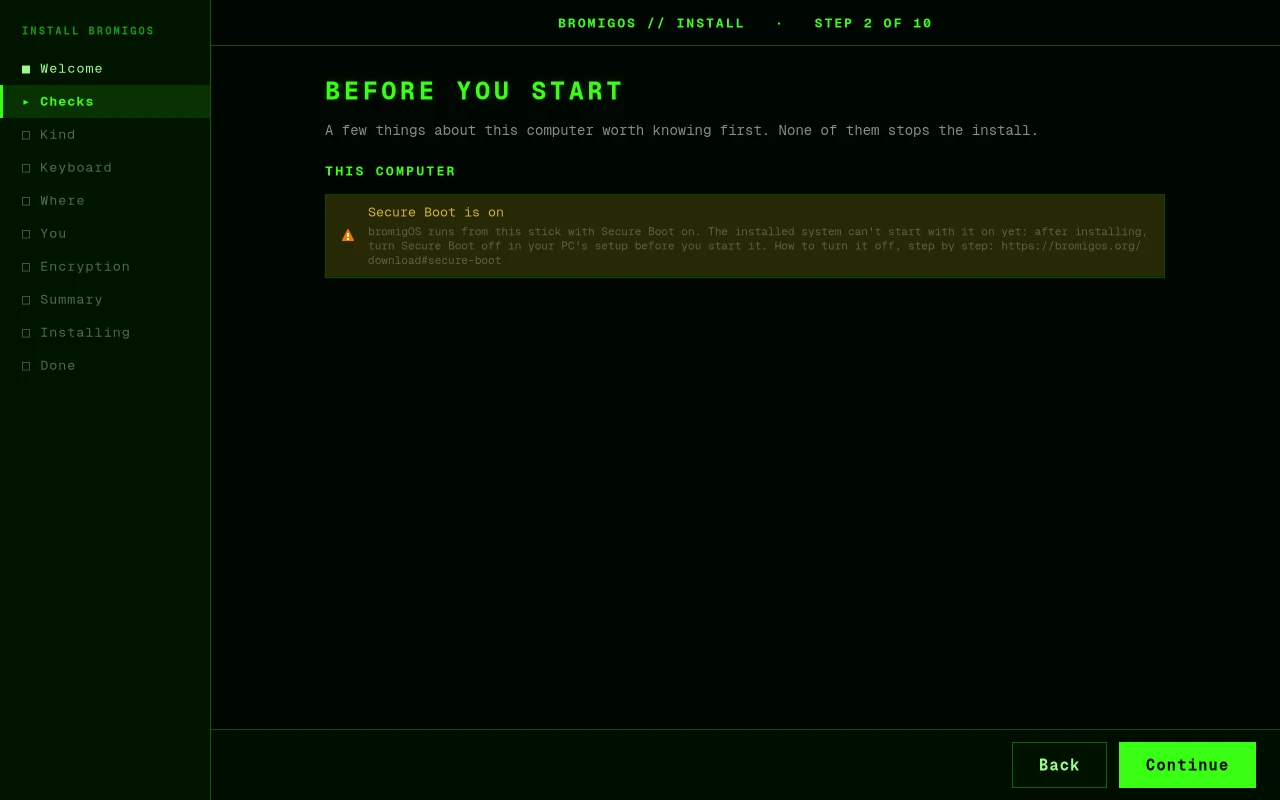
Before you start. Only when there’s something to know: running on battery, little memory, a disk that says it’s failing, or Secure Boot. Each one says what to do, and none of them stops you.
Secure Boot on? Install as usual. Then turn Secure Boot off (how) before you start bromigOS from the disk. The installed system can’t start with it on yet.
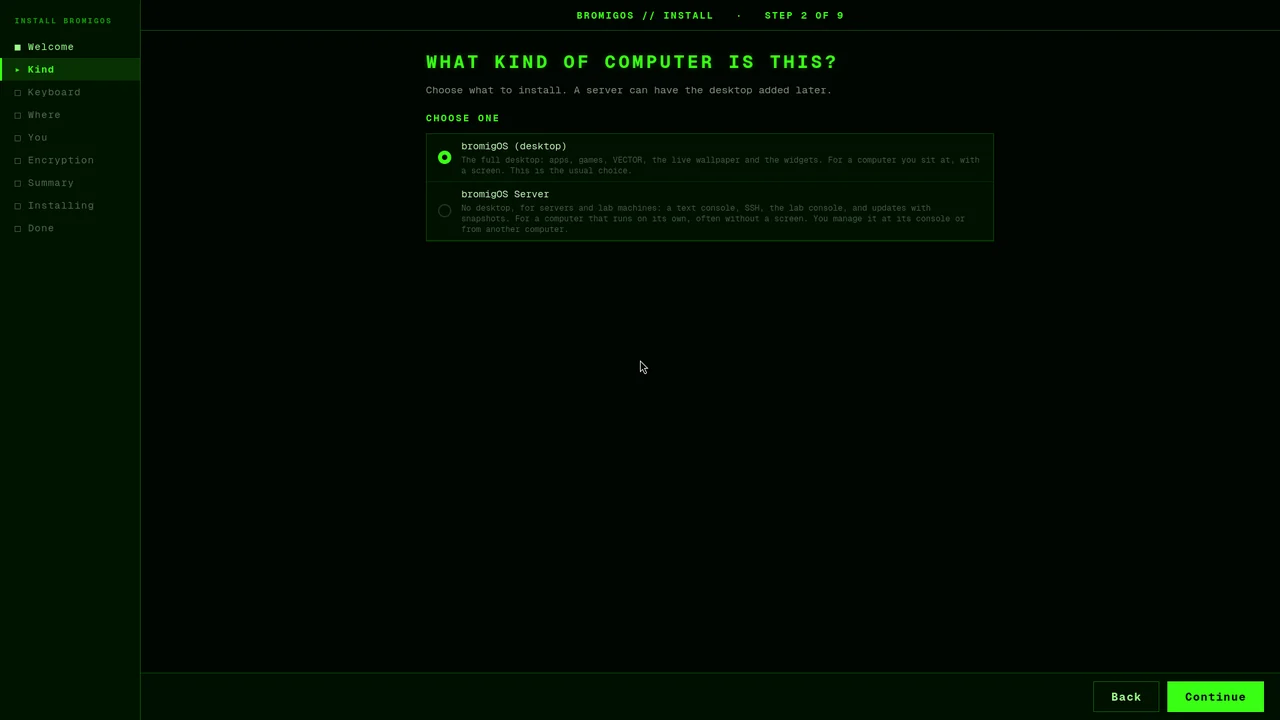
What kind of computer is this? bromigOS (desktop) for a computer you sit at. bromigOS Server has no desktop, for servers and lab machines.
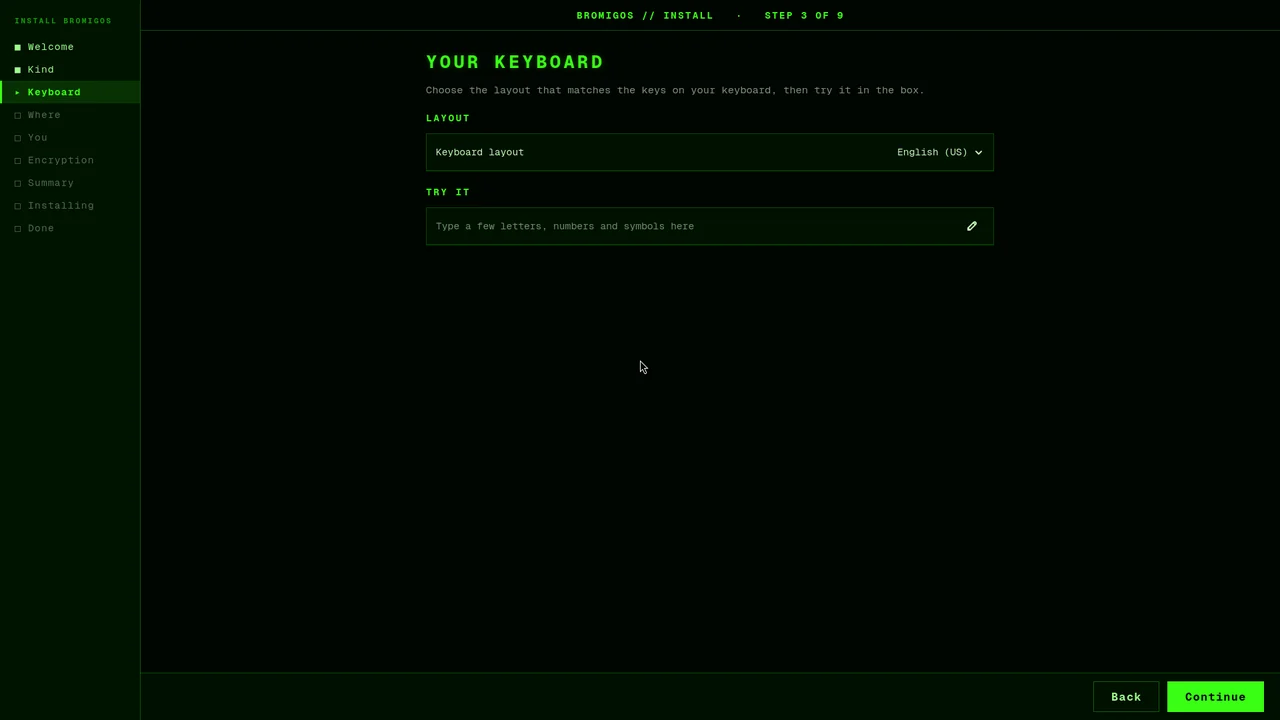
Your keyboard. Pick the layout that matches your keys, and try it in the box.
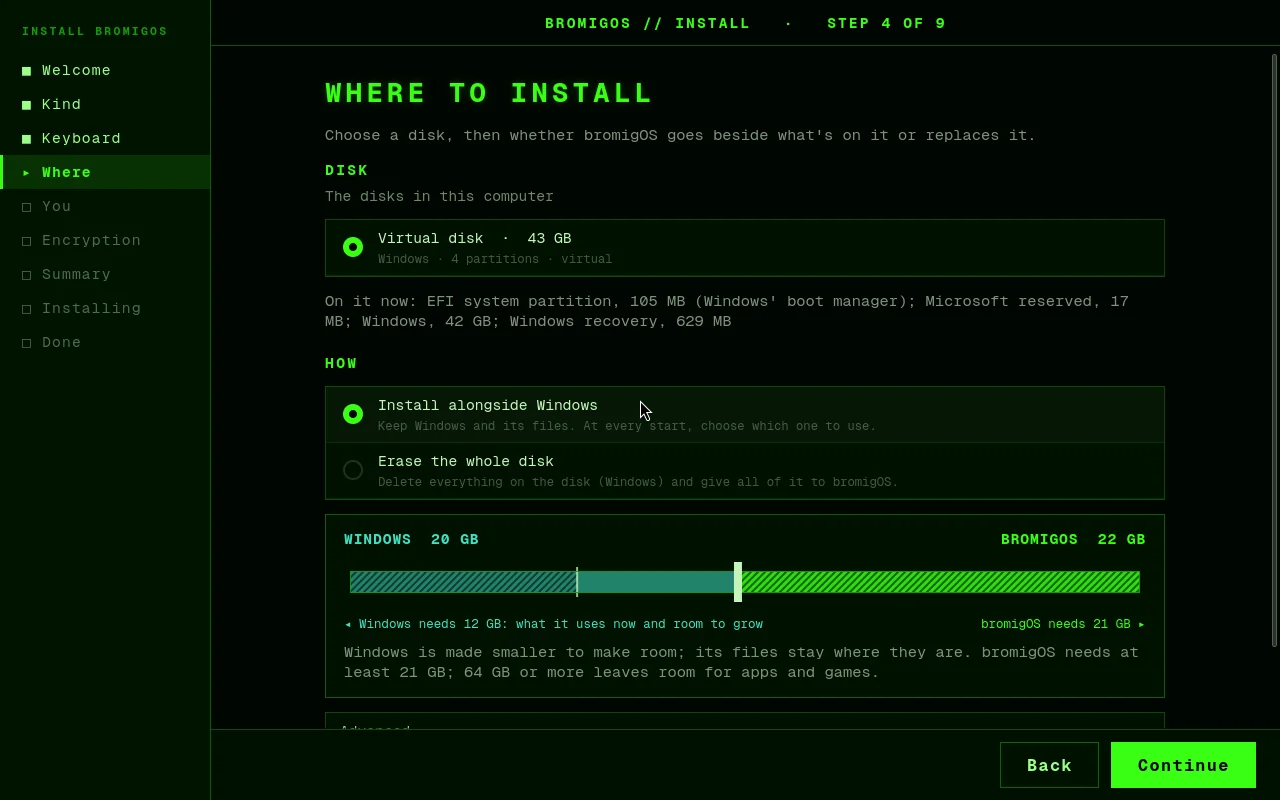
Where to install. Every disk, with its size, model and what’s on it. Pick one, then:
If alongside can’t be offered, the screen says why and what to do. For example, Windows’ Fast Startup or hibernation must be off, because a sleeping Windows can’t be resized safely. A disk locked with BitLocker is never resized.
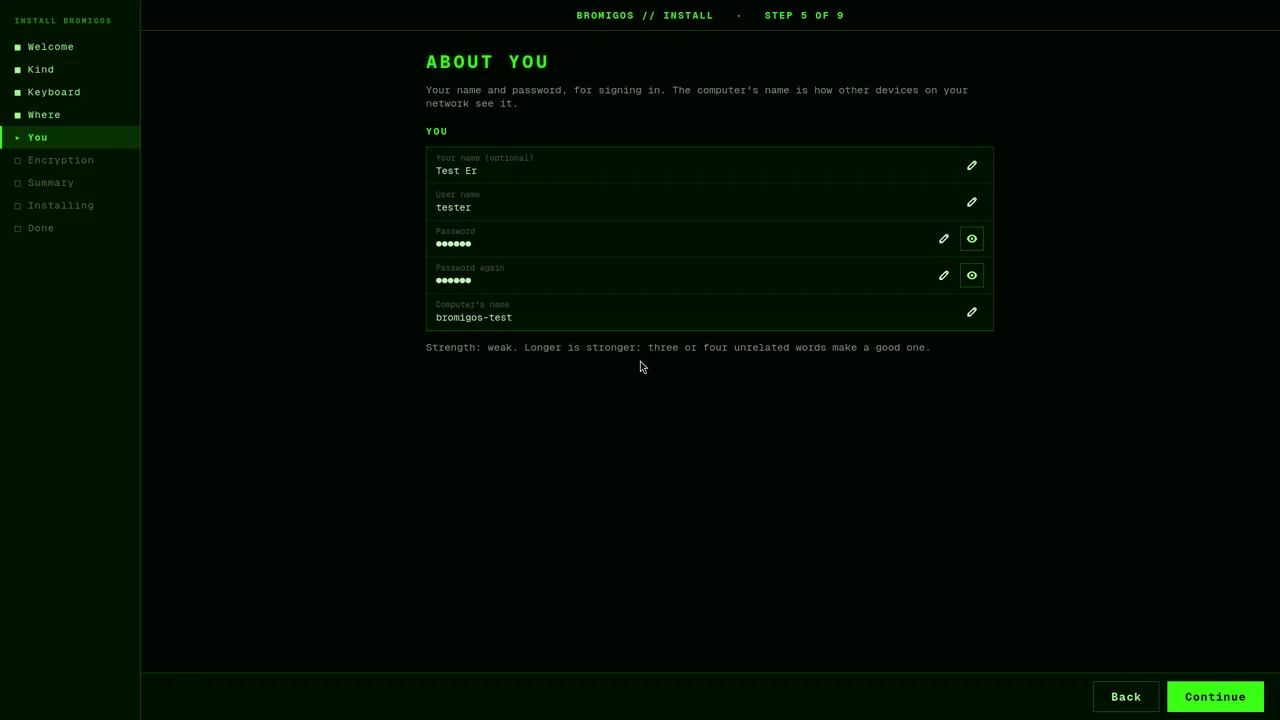
About you. Your name, a user name for signing in, a password, and a name for the computer.
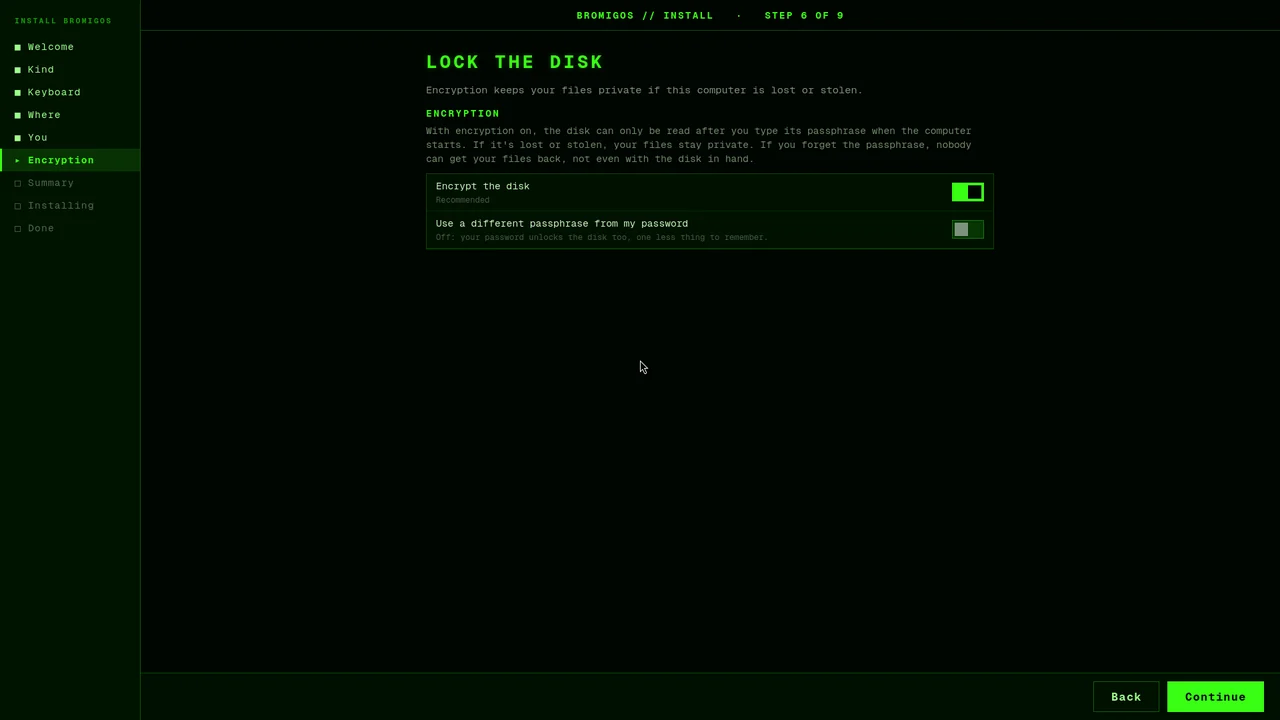
Lock the disk. Encryption is on by default: without the passphrase, nobody can read the disk, even if the PC is lost or stolen. Your password unlocks it, or give it a passphrase of its own.
Remember it. Nobody can recover it, and without it the disk can’t be read.
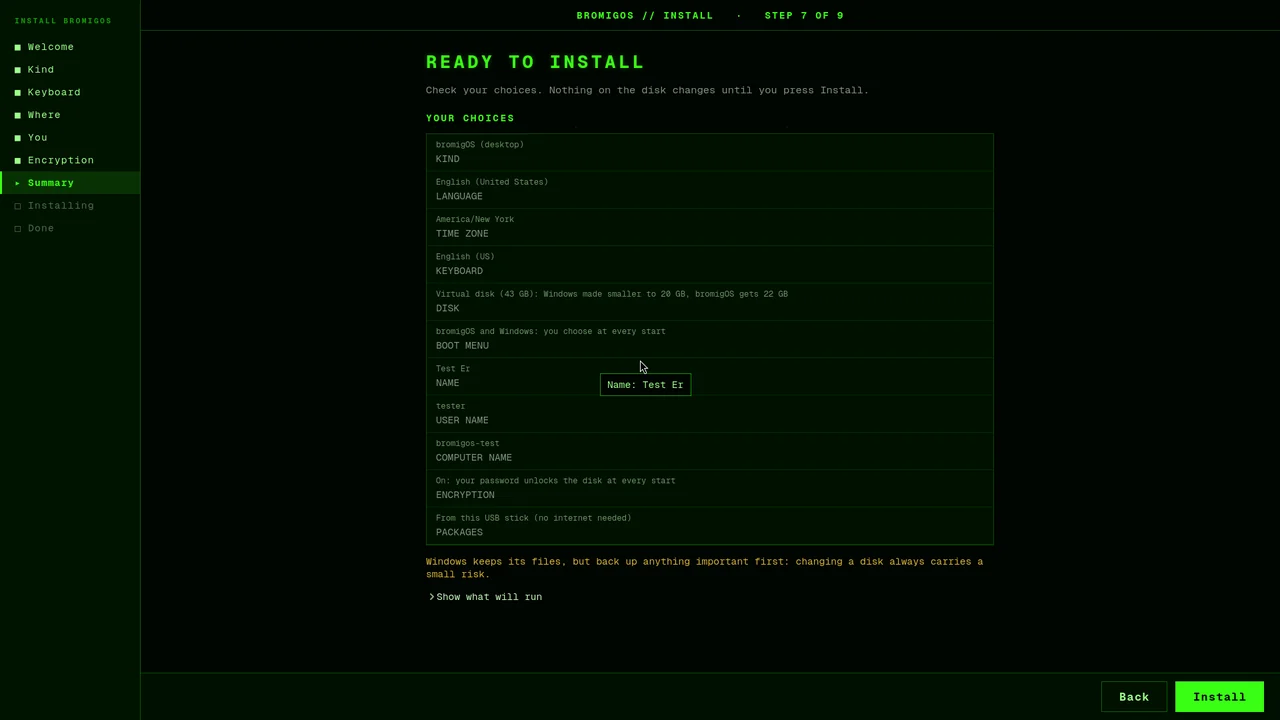
Ready to install. Check your choices. Nothing on the disk changes until you press Install.
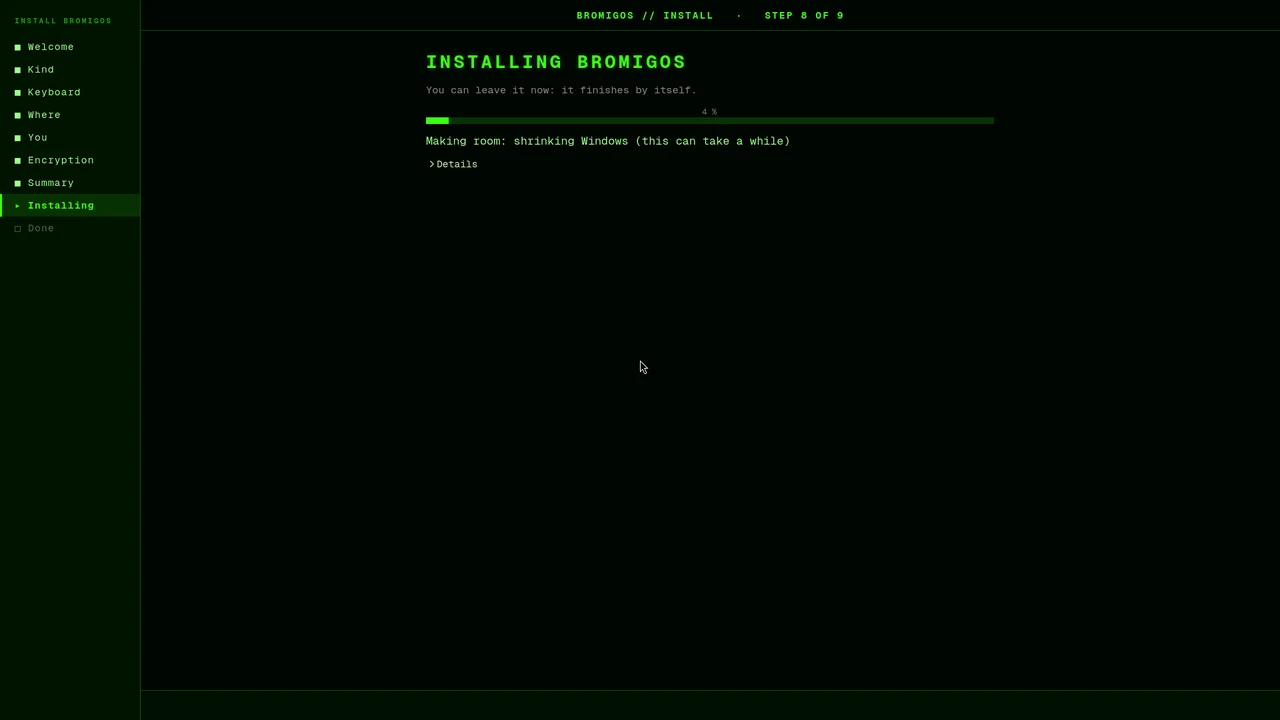
Installing. A progress bar says what it’s doing. It takes about ten minutes, and you can leave it.
Done. Press Restart now, and take out the stick when the screen goes dark.
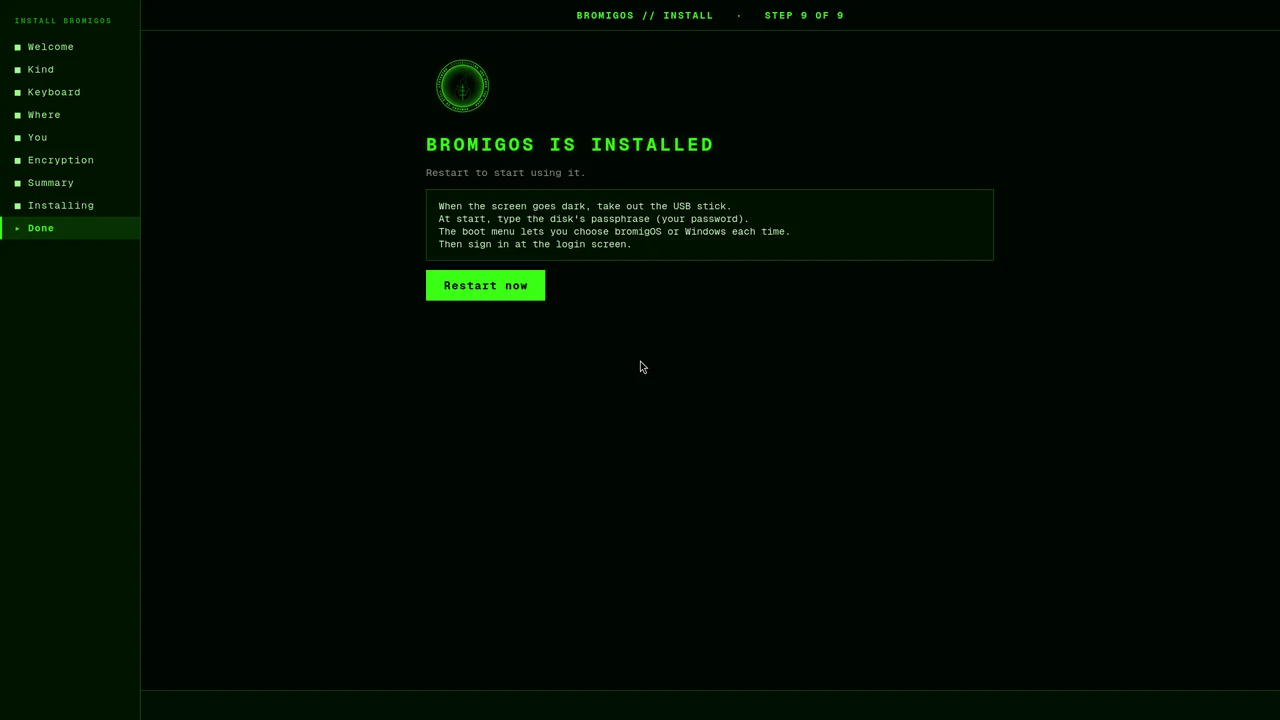
If Windows on the disk uses BitLocker, the installer first asks you to save its recovery key: Windows may ask for it once after bromigOS is installed. You’ll find it at aka.ms/myrecoverykey. Tick I’ve saved it to go on.
Choose Install bromigOS (text mode) in the boot menu. It’s the same installer with the same steps, in text, and it works with only the keyboard. Start with the screen reader (speech) reads each question aloud.
The installer says what happened and what to do. Save a problem report puts the details on a USB drive for whoever helps you. If a reinstall stops partway, your old bromigOS is put back as it was.
An answer file at bromigos/install.toml on a USB drive installs with no questions, after a 10-second countdown with Cancel. A file with a problem is never half-used: the installer says what’s wrong and asks instead.
[install]
edition = "desktop"
locale = "en_US"
timezone = "America/Chicago"
keyboard = "us"
disk = "/dev/nvme0n1"
mode = "erase"
user = "alex"
hostname = "alex-pc"
password = "correct horse battery staple"
encrypt = true
| Boot parameters | What opens |
|---|---|
bromigos.install | The graphical installer, the desktop chosen |
bromigos.install bromigos.edition=server | The text installer, bromigOS Server chosen |
bromigos.install bromigos.text | The text installer |
bromigos.answers=PATH | That answer file |
On the live system, from a terminal:
| Part | What it is |
|---|---|
/boot | 2 GiB, unencrypted: the EFI system partition on an erased UEFI disk; ext4 beside Windows, whose own EFI partition is mounted at /boot/efi |
| The root | btrfs on LUKS2 (unless encryption is off), subvolumes @, @home, @log, @pkg, @.snapshots |
| Boot loader | GRUB, with os-prober listing Windows; beside Windows it goes in EFI/GRUB, never Windows' fallback loader |
config.json and creds.json (mode 0600). Passwords go only in creds.json, never on a command line or in a log.bromigos setup lines the install runs. Advanced on the Where step offers custom partitioning, the file system, swap (zram by default), the kernel and the boot loader. A root shell is one key away: Ctrl+Alt+T in the graphical installer, F12 in the text one.ntfsresize (dry run first), then sfdisk, then checks the file system reads whole. BitLocker, hibernated and Fast Startup volumes are refused./var/log/bromigos/install-answers.toml: add a password and it repeats the install.@home, makes a fresh @, keeps the old one as @old-root-DATE, and brings back every user with the same user ID.Step 07
If you chose encryption, type the disk’s passphrase when the PC starts, then sign in with your user name and password. The welcome tour opens: every step has Skip, and nothing changes until you choose something.
Secure Boot on? Turn it off before the first start from the disk (how): the installed system can’t start with it on yet.
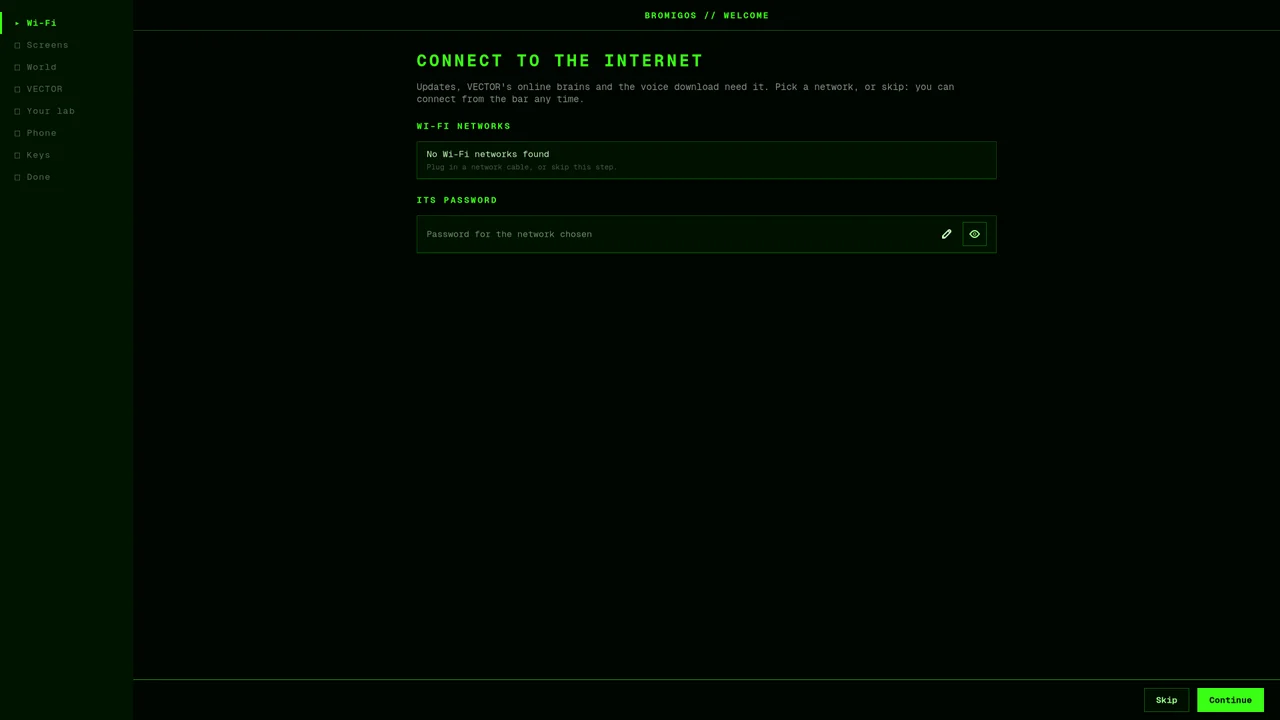
Wi-Fi. Only when you’re offline: pick a network, or skip.
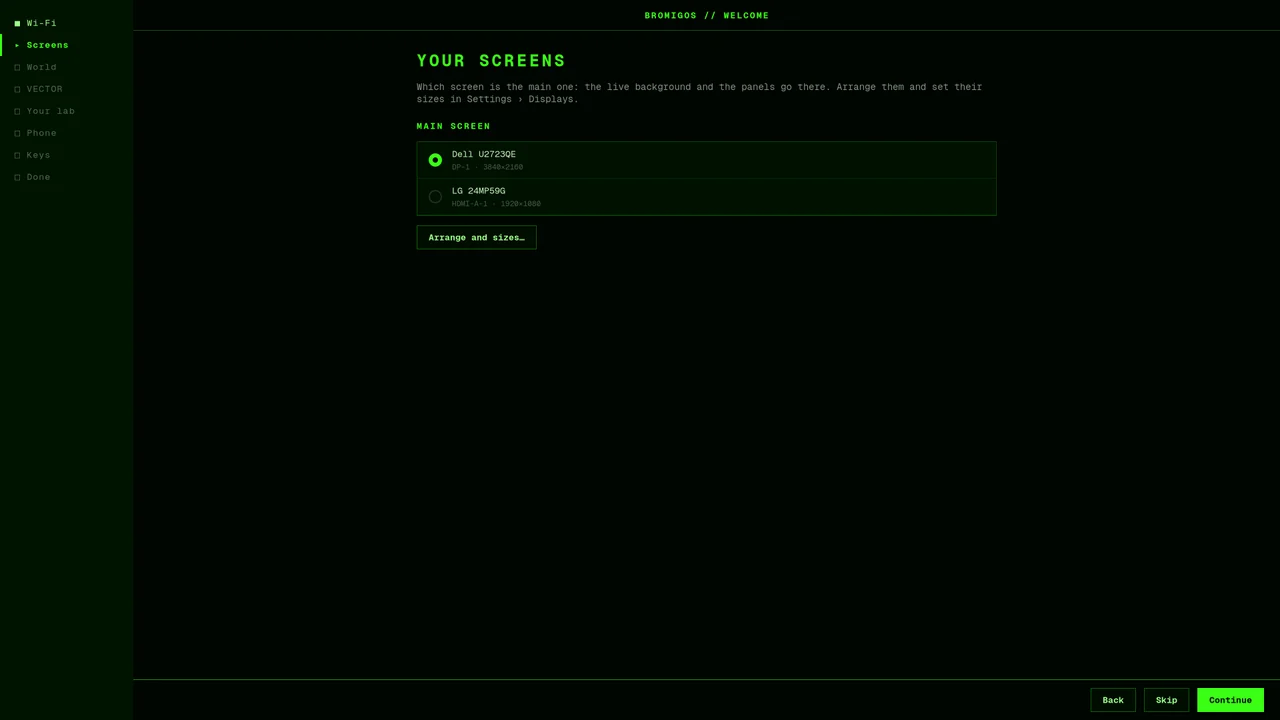
Your screens. Which one is the main screen, where the panels go.
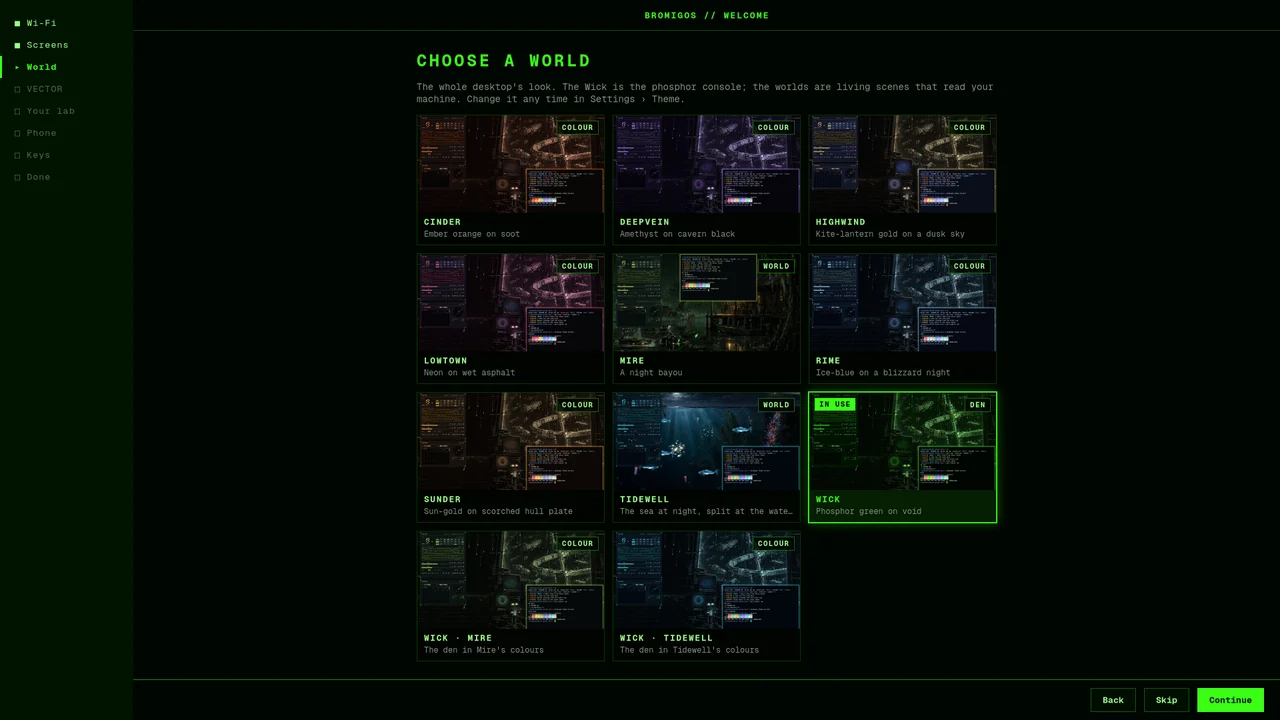
Choose a world. The whole desktop’s look, each with a preview. Change it any time.
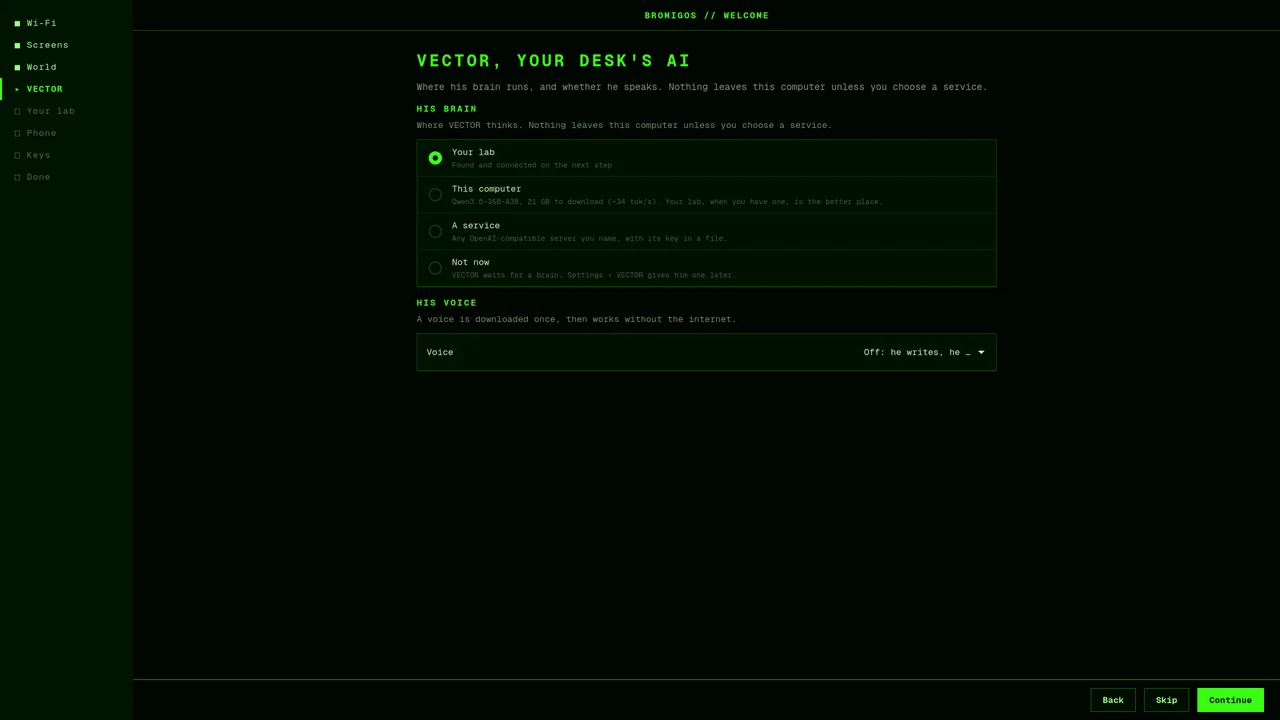
VECTOR. Where your desk’s AI thinks: your lab, this computer (with how much it downloads), a service you name, or not now. And whether he speaks.
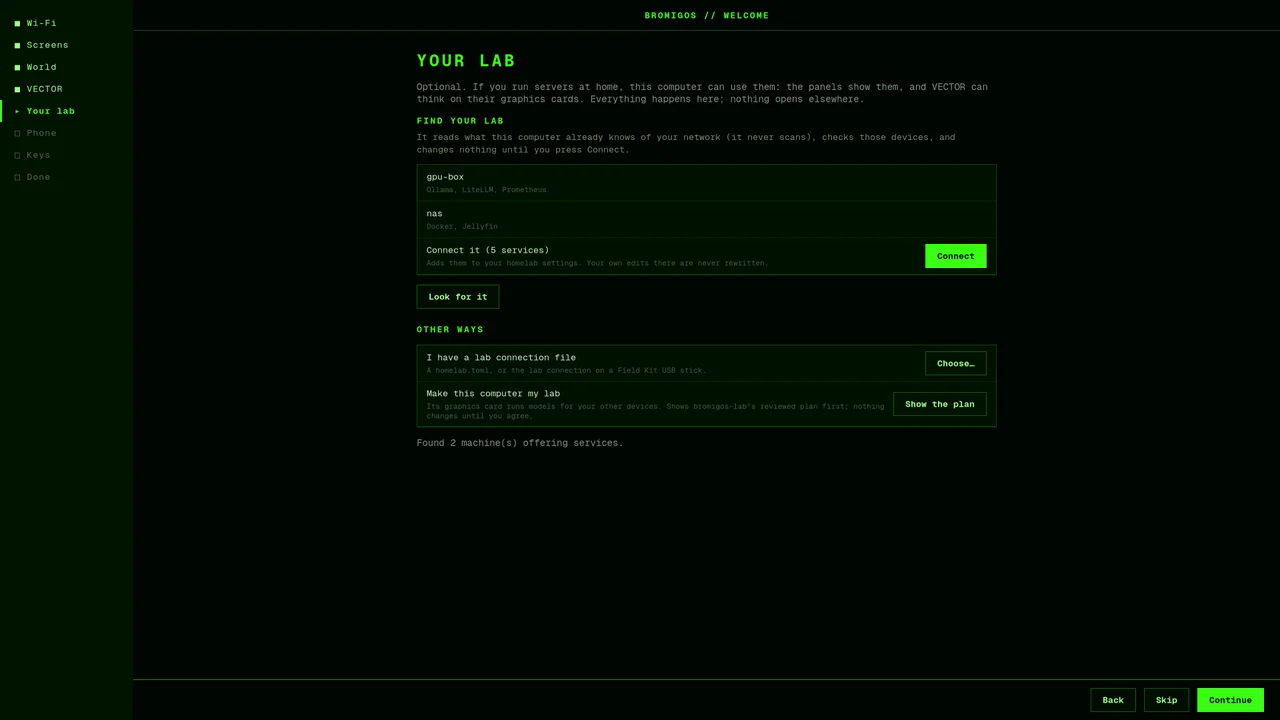
Your lab. Optional. If you run servers at home, it finds them and connects with one button. Nothing changes until you press Connect.
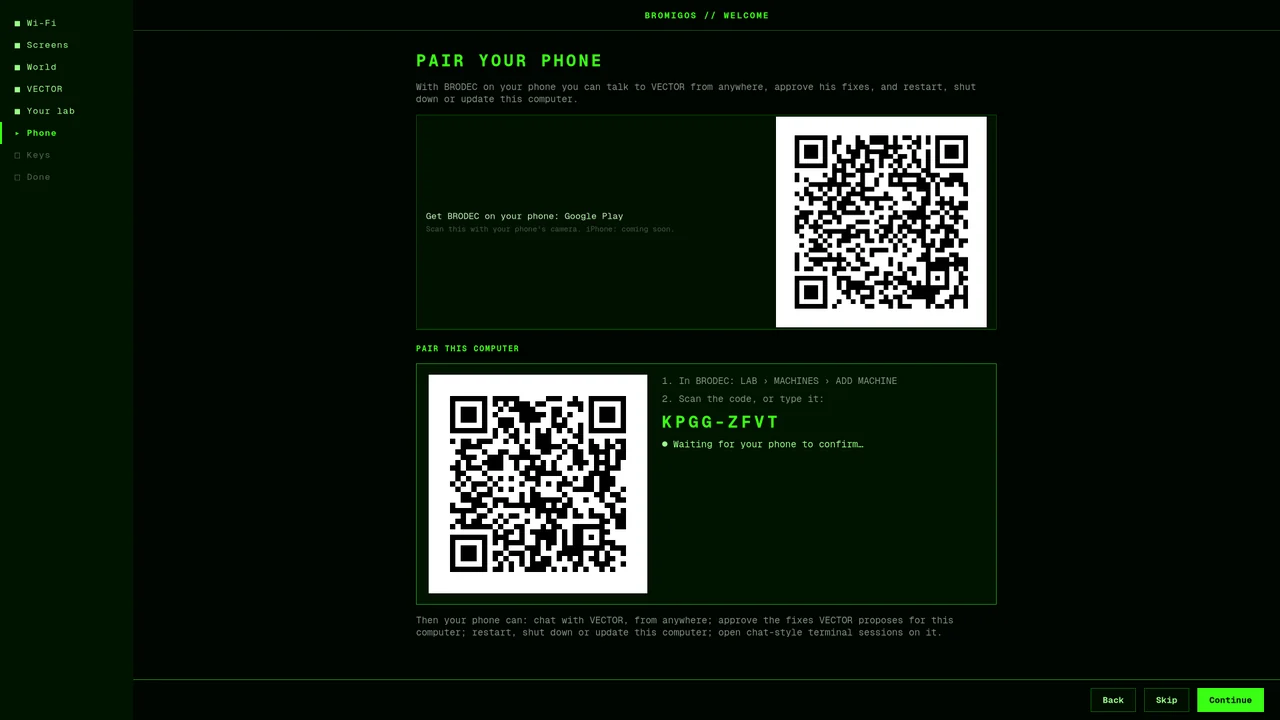
Pair your phone. Get BRODEC on your phone, then scan the code: talk to VECTOR from anywhere, and restart or update this computer. The step ticks when your phone confirms. (iPhone: coming.)
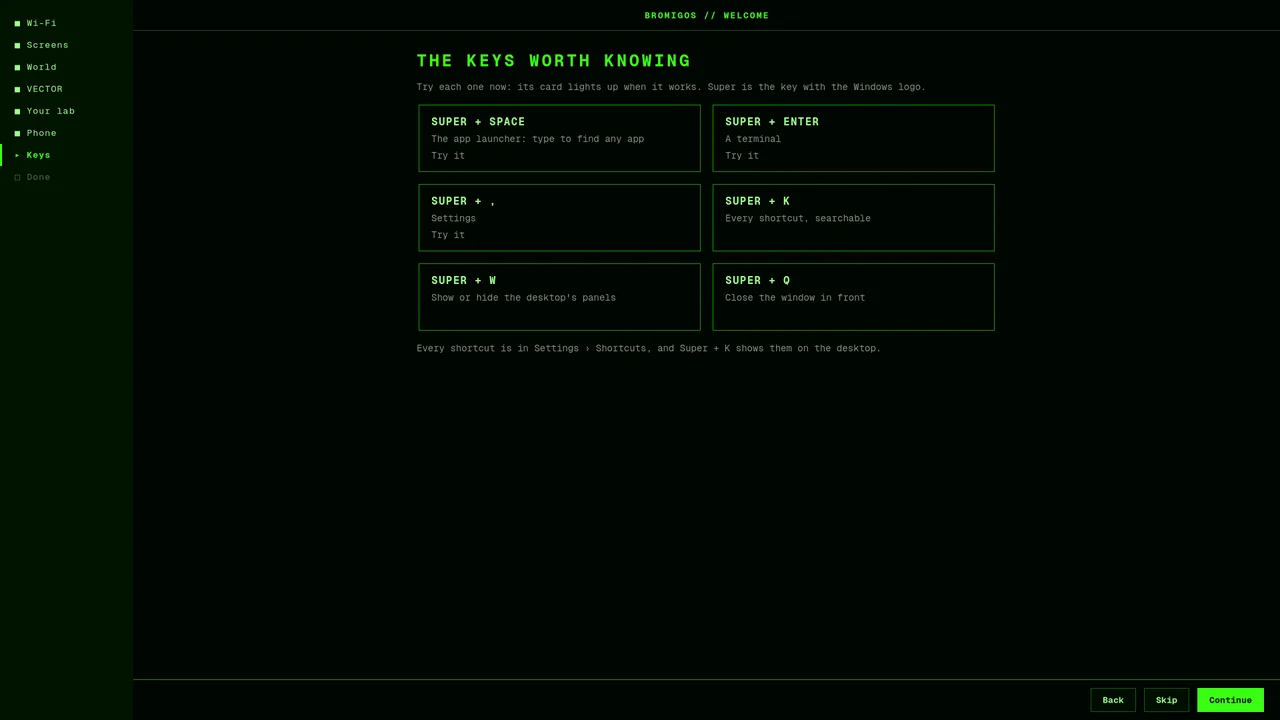
The keys worth knowing. Press each one and its card lights up. Super is the Windows key.
You’re all set. What you chose, and where to change it again.
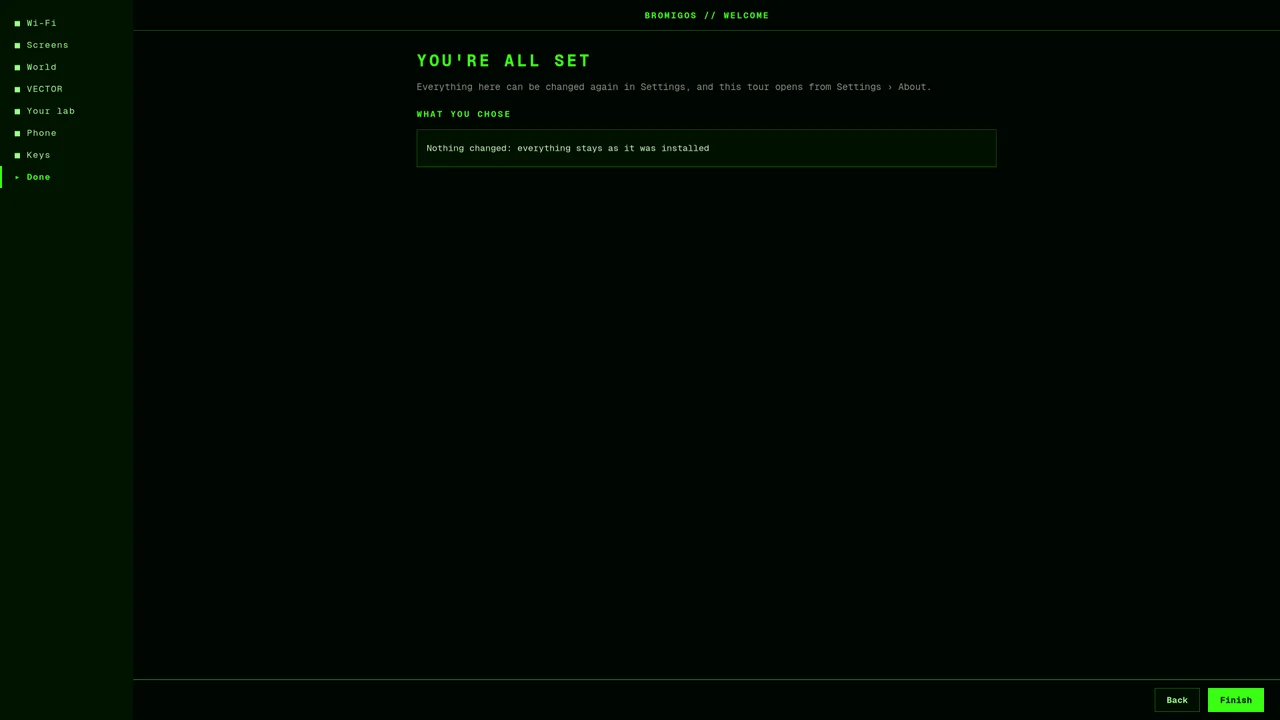
Open the tour again any time from Settings › About › Welcome tour. bromigOS Server has the same tour in text, on its console, with a QR code you can scan from the screen.
| Tour step | The same from a terminal |
|---|---|
| Screens | bromigos setup monitors |
| World | bromigos theme set NAME |
| VECTOR | bromigos setup holo |
| Your lab | bromigos setup homelab --find |
| Everything | bromigos setup |
~/.local/state/bromigos/welcome-pending; the session's autostart runs bromigos welcome --if-pending, so the tour opens once, after a new install.bromigos setup would.Step 08
A small repair ISO for PCs that won’t start: coming soon.
Ask on the Discord: people who run bromigOS, and the people who build it.
Open an issue on GitHub. Say what PC you have and what the screen showed.
The manual’s install page, every step in detail.
The ISOs of the newest three releases are kept here. Older ones are on GitHub Releases.
Install with three commands instead.
Under the hood
CI builds every release’s ISO from its tag: archiso’s releng profile, bromigOS’s overlay, and an offline repository of every package an install needs. Then it checks the image (a privacy guard, no keys, no proprietary packages), tests it in QEMU/KVM (a UEFI encrypted install with its first update and rollback, an offline BIOS install, and Secure Boot with the MokManager enrollment), signs it and publishes it.
iso/build.sh needs Docker (it runs a privileged container) and about 20 GB of disk.iso/ci-test.sh needs /dev/kvm: it runs the same QEMU/KVM tests as CI.